Your first script
Write a short Lua script that draws a sun, run it, undo it, and save it.
Scripts are small Lua programs that draw and edit your sprite for you: anything you can do with the tools, a script can do with code. This walks through writing one that draws a sun on a new layer. It takes about five minutes, and you don't need to have programmed before.
Make a script
Open a sprite (a new 32×32 one is fine) and choose Scripts > New Script.... Name the script "Sun" and press Create.
The Scripts panel opens with a few comment lines (lines starting with --, which Lua
ignores). It has a code editor, a toolbar along the top, and an output area at the bottom. In
the default layout it docks to the right of the canvas, so you can see both at once (you can move
it like any panel: see The workspace).
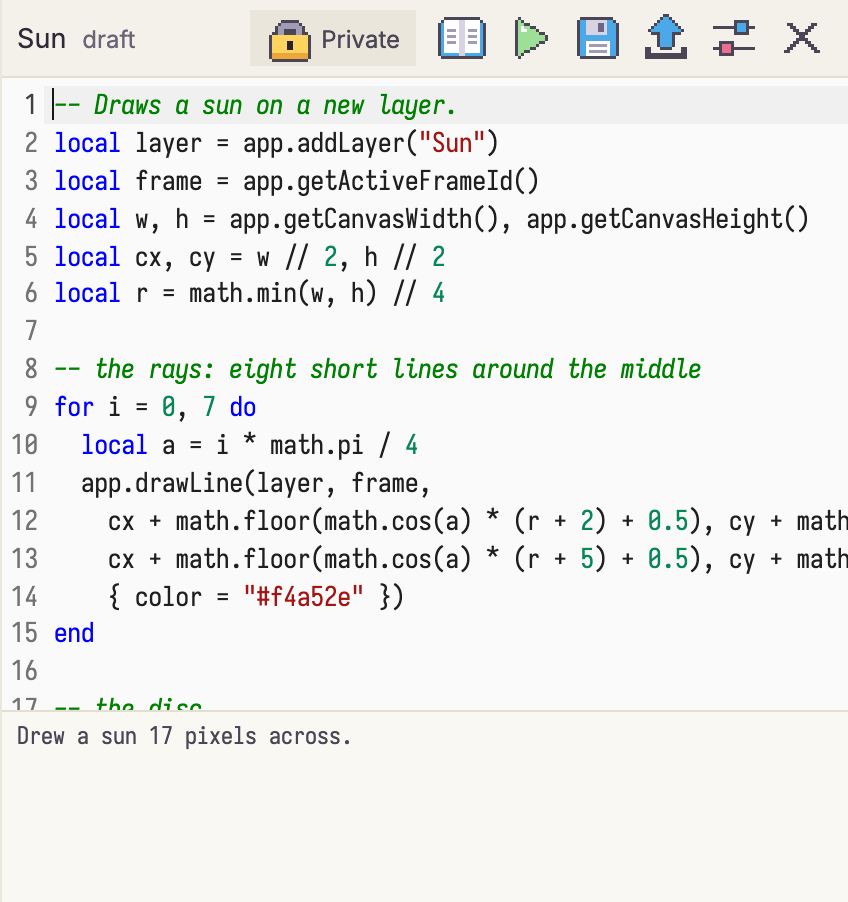
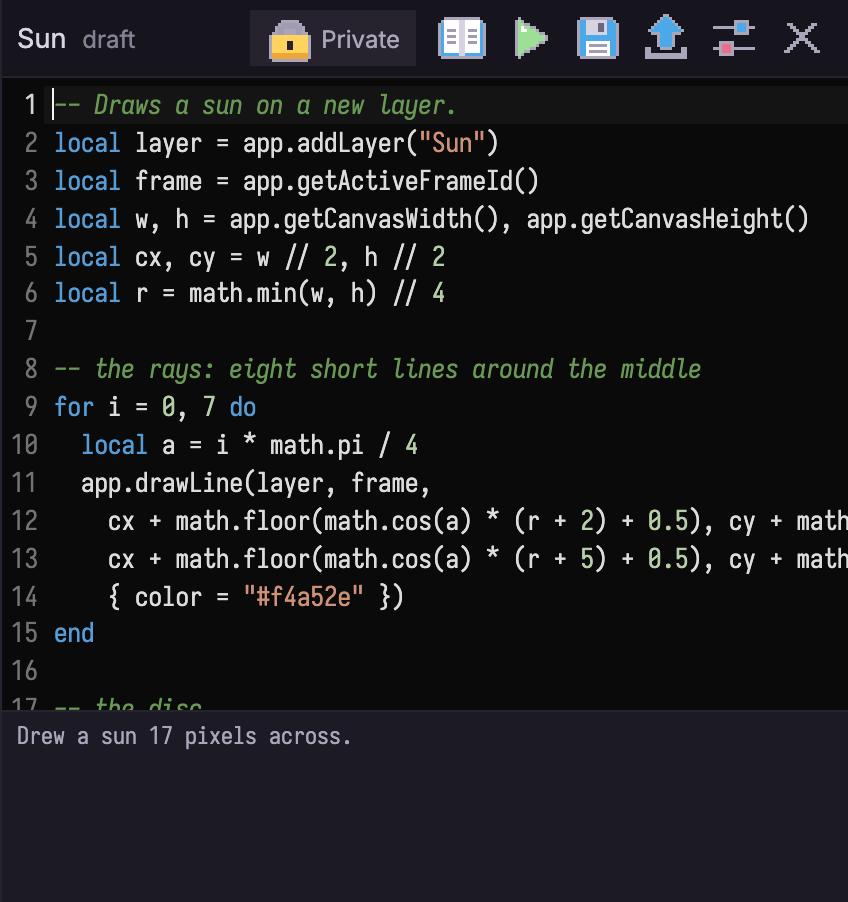
Write it
Replace the comments with this:
-- Draws a sun on a new layer.
local layer = app.addLayer("Sun")
local frame = app.getActiveFrameId()
local w, h = app.getCanvasWidth(), app.getCanvasHeight()
local cx, cy = w // 2, h // 2
local r = math.min(w, h) // 4

-- the rays: eight short lines around the middle
for i = 0, 7 do
  local a = i * math.pi / 4
  app.drawLine(layer, frame,
    cx + math.floor(math.cos(a) * (r + 2) + 0.5), cy + math.floor(math.sin(a) * (r + 2) + 0.5),
    cx + math.floor(math.cos(a) * (r + 5) + 0.5), cy + math.floor(math.sin(a) * (r + 5) + 0.5),
    { color = "#f4a52e" })
end

-- the disc
app.drawEllipse(layer, frame, cx - r, cy - r, cx + r, cy + r, { color = "#ffd34e", fill = "filled" })
print("Drew a sun " .. (r * 2 + 1) .. " pixels across.")
What it does:
app.addLayeradds a layer named "Sun" and gives back its id;app.getActiveFrameIdgives the frame you're on. Every drawing command takes a layer and a frame, like a tool paints on the active layer at the current frame.app.getCanvasWidthandapp.getCanvasHeightread the sprite's size, so the sun fits any canvas. Coordinates are pixels, with (0, 0) at the top-left corner.app.drawLineandapp.drawEllipsework exactly like the Line and Ellipse tools. Anything you don't pass (here, the brush) comes from the current tool settings.printwrites a line to the output area.
As you type, the editor suggests app. functions; point at one to read what it does.
Run it
Press Run (the play button) in the panel's toolbar. The output area says "Drew a sun 17 pixels across.", and the timeline has a new layer, "Sun", with the sun on the canvas beside the panel.
If something's wrong, the output area shows the error and the line it happened on is highlighted. Fix it and run again.
Undo it
Everything a run changes is one undo step: press Ctrl+Z and the layer and the sun are gone
together. Change a color or the + 5 that sets the ray length, and run it again.
Save it
Press Save draft (the disk button). The script is saved in this browser, like your sprites,
and a * after its name in the panel shows unsaved changes. To open it again later, choose
Scripts > Open My Script...; the last five scripts you opened are also listed right under it in the
Scripts menu.
Publish shares a script in the script library; it needs an account with Sync (see the scripting guide).
Next steps
- The scripting guide covers running, stopping, script windows, script commands and the official generators.
- The Scripting API lists every
app.function, grouped by what they do: drawing, layers, frames, color math and more.